
Zeno Landing Page Builder
Built for Shopify: Zeno Landing Page Builder
Build landing, home and product pages for your store by drag and drop.
Install on ShopifyGet help with Zeno Landing Page Builder
- Rating
- 4.7 from 106 ratings
- Shopify App Store, Nov 2026
- Price
- Free plan available. Free trial available.
- Shopify App Store, Nov 2026
- Listed
- Since Jun 2021
- Shopify App Store, Nov 2026
History
- Jun 28, 2021Launched
- Summer 2026Joined Ecemmerce
What it does
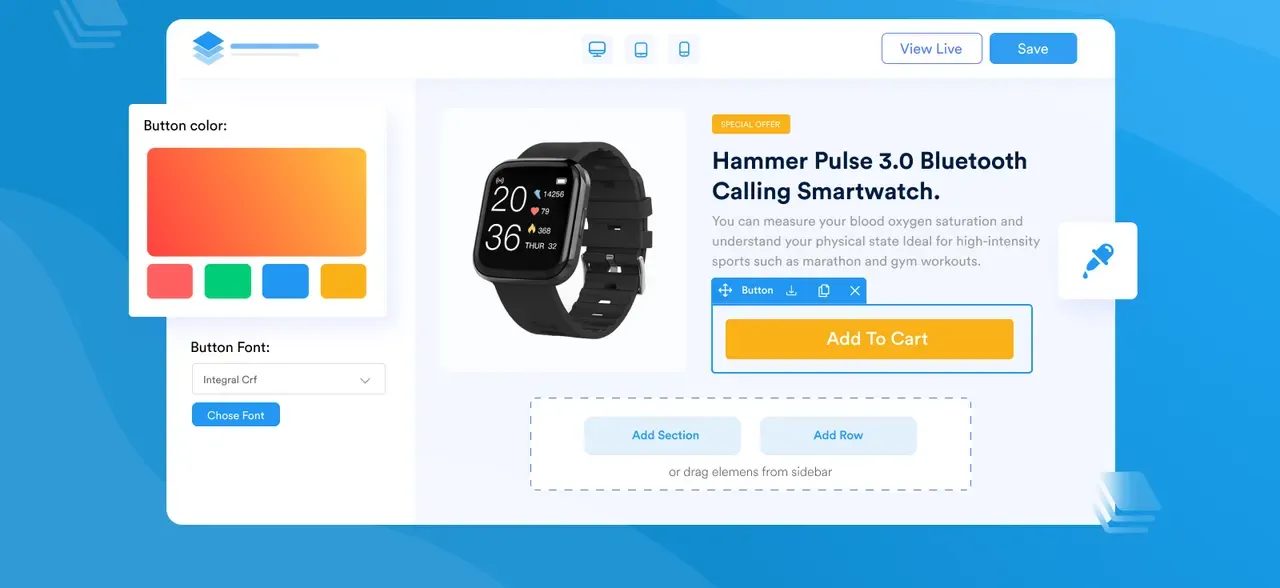
Build store pages by dragging elements into place and inserting pre-made sections: landing, home, about us or FAQ pages, and the templates of the products and collections you already have. When you publish, the page goes to your Shopify store.
Each screen on its own
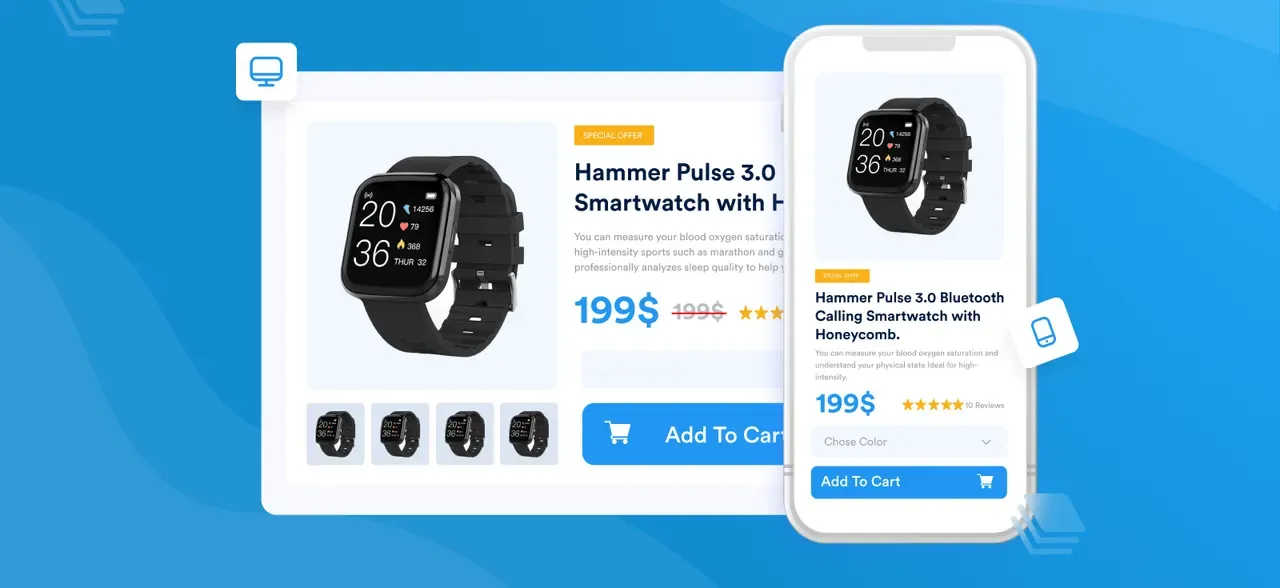
Edit the page for desktop, tablet and mobile with the Screen switcher. Almost every style setting can be set per screen.
Start from a template
Begin a page from a template or from scratch: landing, home, about us or FAQ pages, and the templates of the products and collections you already have.
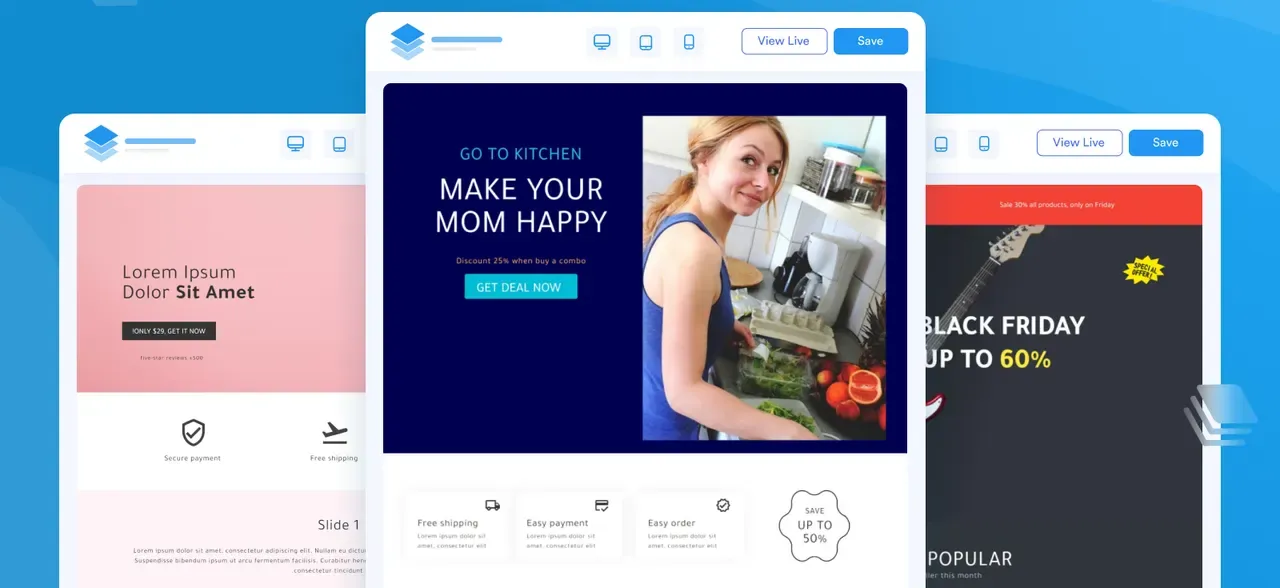
Pictures from the app's listing on the Shopify App Store, Nov 2026.
How to set it up
Create a page
In the Dashboard, open Regular pages, click New page and choose a template or start from scratch.
Name it
Fill in the page name and URL path, choose whether to use the theme layout, and click Create page.
Build it in the Editor
In the Editor, drag elements from the Element tab or insert sections from the Library into the page, then click an element to change its settings.
Save as you go
Click Save to keep your changes in the app; your store does not show them until you publish.
Publish
Click Publish to send the page to your store, then click View live to open the live page.
The details
No code needed
The app writes the HTML, CSS and JavaScript. Add your own code when you want more control.
Nothing new in your catalog
Product and collection pages change the template of what you already have.
One design, many products
Duplicate a product template to give other products the same design.
Save, then publish
Save keeps changes in the app; Publish makes them live.
Revisions
Every publish saves a revision you can revert to from the Editor's Topbar.
Your home page
Set any page you build as the store's home page, and switch back the same way.
Plans
20 Theme sections · or $190/year and save 17% · 10-day free trial
$19 a month
Choose on ShopifyAs listed on the Shopify App Store, Nov 2026.
Questions
Do I need to know code?
No. You place elements by dragging and dropping, and the app generates the HTML, CSS and JavaScript for you. If you want more control, you can also add your own code.
Does it create new products or collections in my store?
No. Product pages and Collection pages change the template of the products and collections you already have. A regular page is published as a Shopify store page, and the app adds no content types of its own.
How do I give several products the same design?
In Product pages, click Edit product and choose a product to edit its template. Duplicate that template to apply the change to other products.
I clicked Save. Why has my store not changed?
Save keeps your changes in the app only, so the live page still differs from what you see in the Editor. Click Publish to make the changes go live.
Can I go back to an earlier version of a page?
Yes. Each time you publish, the app saves a revision of the page. Click Revisions in the Topbar of the Editor to see them and revert to one.
How do I check a page on phones and tablets?
Use the Screen switcher in the Editor: its Desktop, Tablet and Mobile buttons let you edit the page for each screen. Almost every style setting can be set per screen.
Can a page I build be my home page?
Yes. In the Dashboard, click the ellipsis icon next to the page and choose Set as homepage. Revert default homepage in the same menu switches back.
Install

Zeno Landing Page Builder
Build landing, home and product pages for your store by drag and drop.
4.7 from 106 ratings · Read the reviews on the Shopify App Store


